

What Is The Smart.fm Bookmarklet?
How To Use The Smart.fm Bookmarklet?
Surf to any page (with English text) and click on the bookmarklet.
Once the bookmarklet has loaded, a small blue panel will appear. Use your mouse to rollover the text and words that are in the item bank will turn yellow.
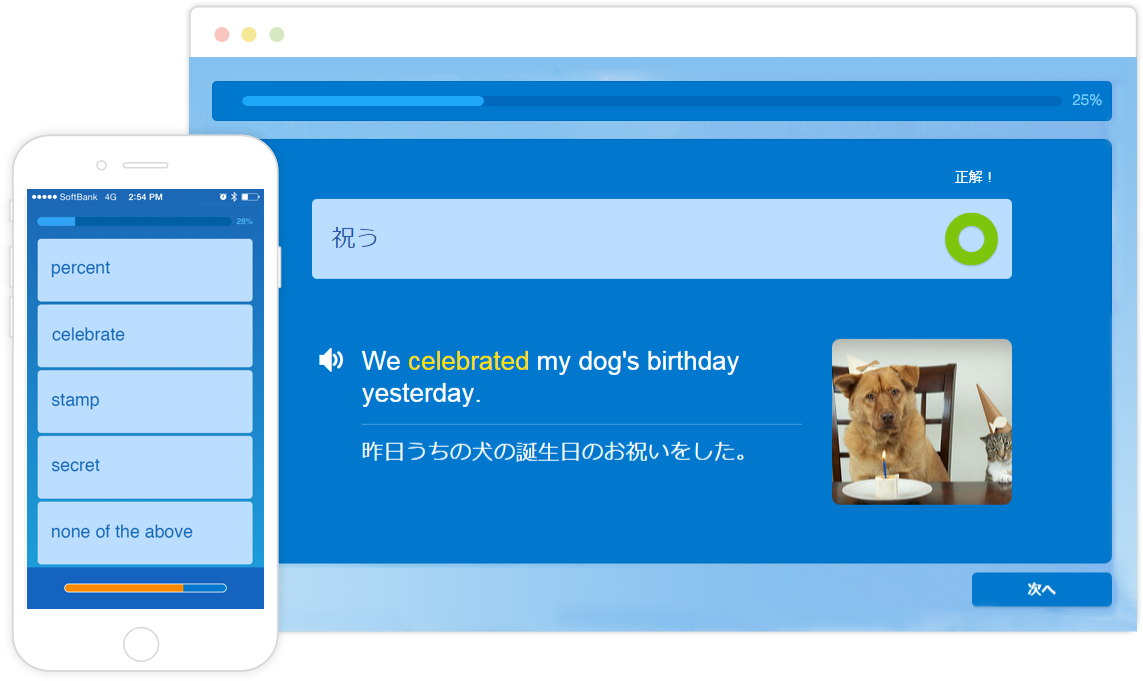
When a word turns yellow, click on the word and a bubble will pop up displaying the item/s that match that word. The bubble will also display the Japanese response, part of speech, and audio so you can list to that item right from that page.
If you're logged in, you can click on the + button and any item to one of your lists. The sentence surrounding the item will also be automatically added to your current list. You can add as many items as you like to any of your lists without heading back to the Smart.fm site until you're done.
Also, you can highlight a snippet of text and click on the create "journal" or "text list" buttons. This will paste the snippet of text, along with a link back to the original article, into your new journal entry or text list. This makes grabbing interesting snippets with links back to the full article as easy as 1, 2, 3!
- 1Help
- 2Minimize
- 3Close
- 4Last
- 5Write a journal
- 6Make a text list
- 7Go to your lists
- 8Set your current list
- 9Next
Note that you can also use the small < and > buttons to navigate from word to word without using the mouse.
Finally, if you haven't created a list yet, you must first create one before you can study items from the page you're on. Enjoy!
Firefox, Safari and Chrome
Click and drag the "Smart.fm Bookmarklet" button below to your web browsers bookmarks bar.
Internet Explorer
Right click on the "Smart.fm Bookmarklet" button below and choose "Add to Favorites..."
※ (Because the Bookmarklet uses JavaScript Internet Explorer gives a warning alert "You are adding a favorite that may not be safe. Do you want to continue?" Click yes to finish the install.)